Headphones are connected but no sound
When Windows shows your headphones as connected but you hear nothing, do not reinstall the OS first. Confirm wired vs Bluetooth vs USB, watch the Sound meter, then follow the matching branch — default device, Hands-Free vs Stereo, exclusive mode, Spatial sound, Volume Mixer, or drivers.
Step 1 — Confirm connection type and the Sound meter
- Wired / 3.5mm — Tip fully seated in the headset jack (not a line-in or combo jack misread). Follow wired headphones.
- Bluetooth / wireless — Device listed under Settings → Bluetooth & devices as Connected. Follow Bluetooth headphones (also covers most wireless buds).
- USB headset / dongle — Appears as its own playback device in Sound settings; treat like wired for jack checks, then default output and drivers.
- Earbuds / buds — Mostly Bluetooth on PC; see earbuds after the first meter check.
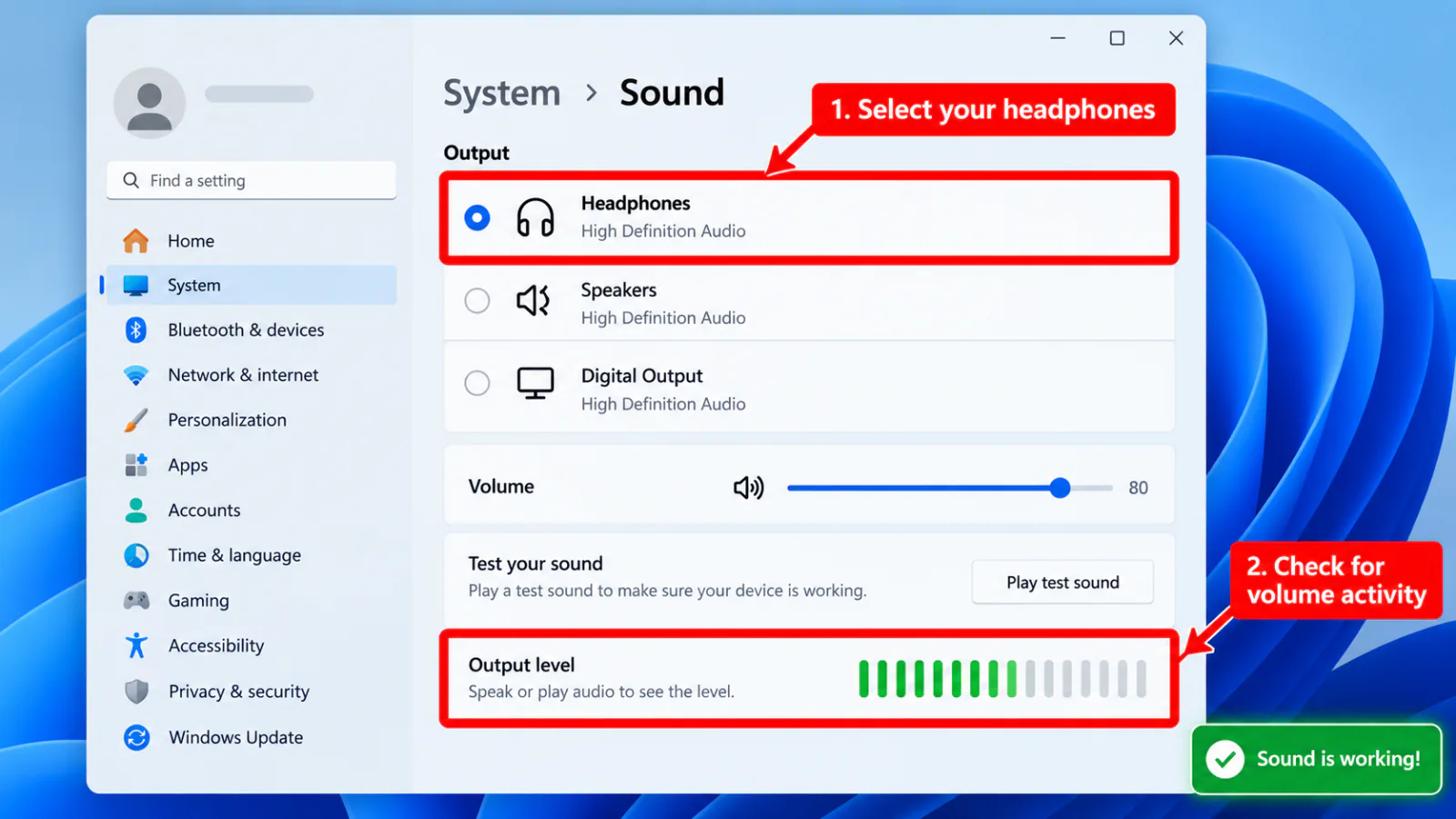
Open Settings → System → Sound (Windows 11) or classic Sound control panel (mmsys.cpl). Play a short video or the Windows test tone and watch the volume meter on the selected output:
- Meter moves, you hear nothing — Wrong endpoint, exclusive mode, Spatial sound, or hardware mute on the headset. Jump to default output, then exclusive mode and spatial audio.
- Meter stays flat — App muted, wrong app output, or driver/service failure. Check Volume Mixer, then drivers and troubleshooters.
- Only one app is silent — Mixer or that app’s own device picker; not a full OS failure. Start at Volume Mixer.
- Everything is silent including system sounds — Default device, driver, or after-update regression. Use the branches below.
Step 2 — First-cut decision branches
→ Bluetooth path
→ Wired path
→ Earbuds path
→ Wrong default device
→ After update
→ Windows 11 paths
→ Audio & Bluetooth troubleshooters
Step 3 — Safe checks that fix many “connected but silent” cases
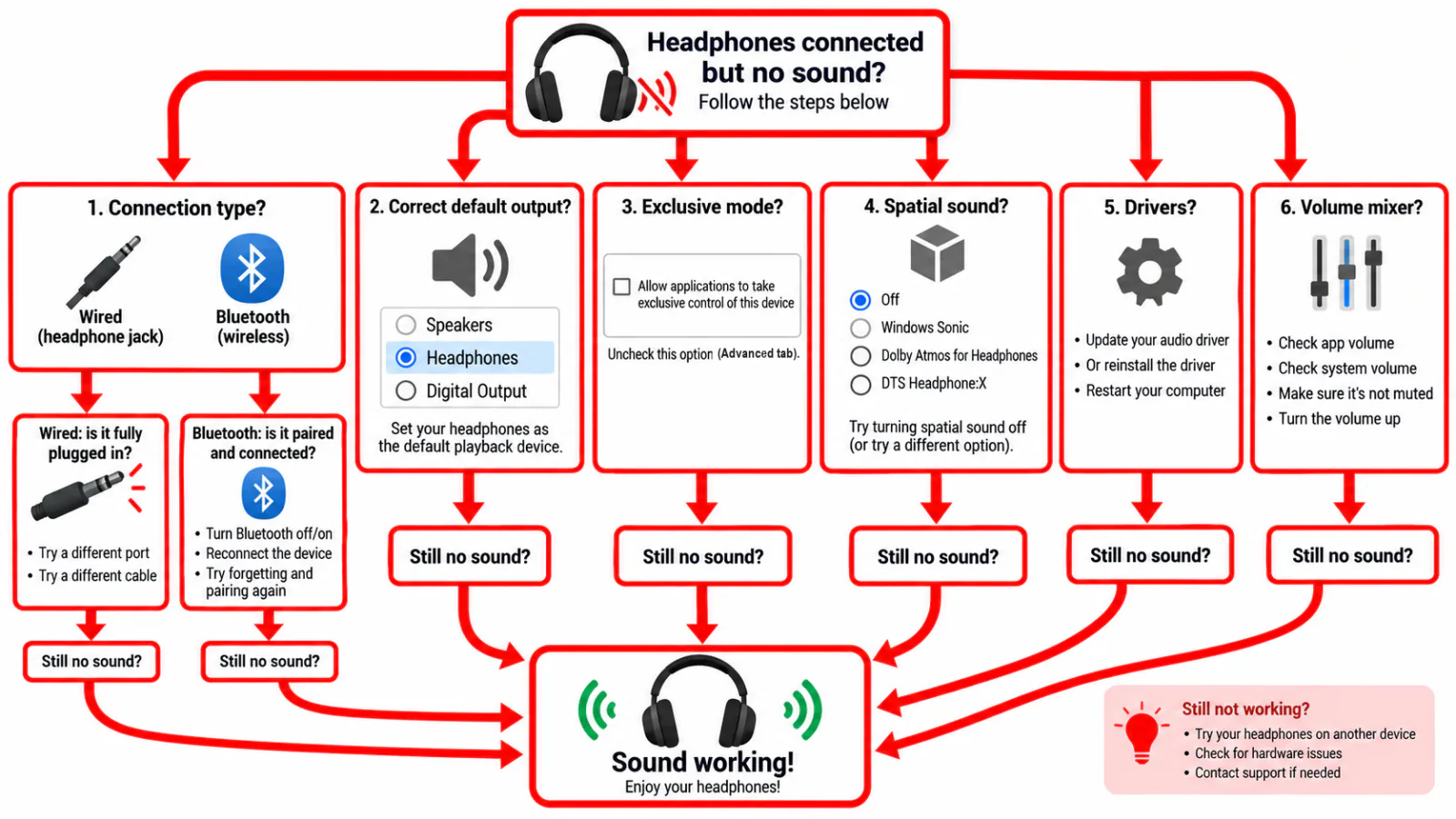
- Set the headphones as Default device and Default Communication device in Sound settings or
mmsys.cpl→ Playback. Details: default output. - Bluetooth headsets: Prefer the Stereo (or “Headphones”) endpoint for music/video; Hands-Free AG Audio is for calls and often sounds thin or silent for media. See Bluetooth.
- Turn Spatial sound Off for that output (Windows Sonic / Dolby). See spatial audio.
- Disable audio enhancements on the device (Sound Control Panel → Properties → Enhancements / Advanced → Disable all enhancements).
- Uncheck exclusive mode if one app grabbed the device: Properties → Advanced → Allow applications to take exclusive control. See exclusive mode.
- Volume Mixer: Raise the app and device sliders; clear mute. See Volume Mixer.
- Restart the Windows Audio service (services.msc → Windows Audio → Restart) or reboot once after changing defaults.
Step 4 — What this site does not cover
Primary scope is Windows 10/11 PC headphone output. iPhone, Android, and Mac “connected but no sound” intents are out of scope here. Brand names (for example Bose, Beats, Sony) appear as examples inside the Bluetooth guide — there are no separate brand pages. This tree does not cover display/HDMI signal failures, boot hangs, unexpected power-offs, or kernel stop-code pages.
FAQ
Why are my headphones connecting but not playing sound?
On Windows, “Connected” only means the link or plug is recognized. Playback still needs the correct default endpoint, unmuted mixer levels, a non-exclusive device, and a working audio stack. Bluetooth users often leave media on the Hands-Free endpoint by mistake.
How do I fix sound not coming out of headphones?
Confirm wired vs Bluetooth, watch the Sound meter, set Default + Default Communication device, disable Spatial sound and enhancements, check Volume Mixer, then drivers or troubleshooters. Follow the first-cut branches on this page instead of reinstalling Windows first.
Why do my headphones say they are connected but I hear speakers?
Windows is still routing to another playback device. Open Sound settings and choose the headphones as the output, or set them as Default in mmsys.cpl. See default output.
Does this apply to Windows 10 and Windows 11?
Yes. Labels differ slightly (Win11 centers on Settings → System → Sound). Use Windows 11 for exact clicks; classic Sound control panel still helps on both.
Should I download a headphone “fix” tool?
No. Use Microsoft Settings, Device Manager, OEM audio/Bluetooth packages, and the built-in troubleshooters. This site does not sell one-click fixers.
Official and primary sources
Symptom map
- Headphones connected but no sound (start here)
- Bluetooth / wireless headphones — connected, no audio
- Wired / 3.5mm jack — plugged in, no audio
- Earbuds / buds connected but no sound
- Wrong default playback or communication device
- Exclusive mode / one app capturing the device
- Spatial sound / Windows Sonic issues
- Audio, Realtek, or Bluetooth driver problems
- Volume Mixer — app muted or communications ducking
- Windows 11 Settings paths for this symptom
- No sound after a Windows Update
- Windows audio & Bluetooth troubleshooters