Volume Mixer / app muted / communications
System sounds work but one app does not — or everything ducks during calls. Open Volume Mixer, clear mutes, assign the headphones per app, and set Communications to Do nothing while testing.
First cut
When headphones work for system sounds but one browser, game, or chat app is silent — or the reverse — fix Volume Mixer and communications ducking before touching drivers.
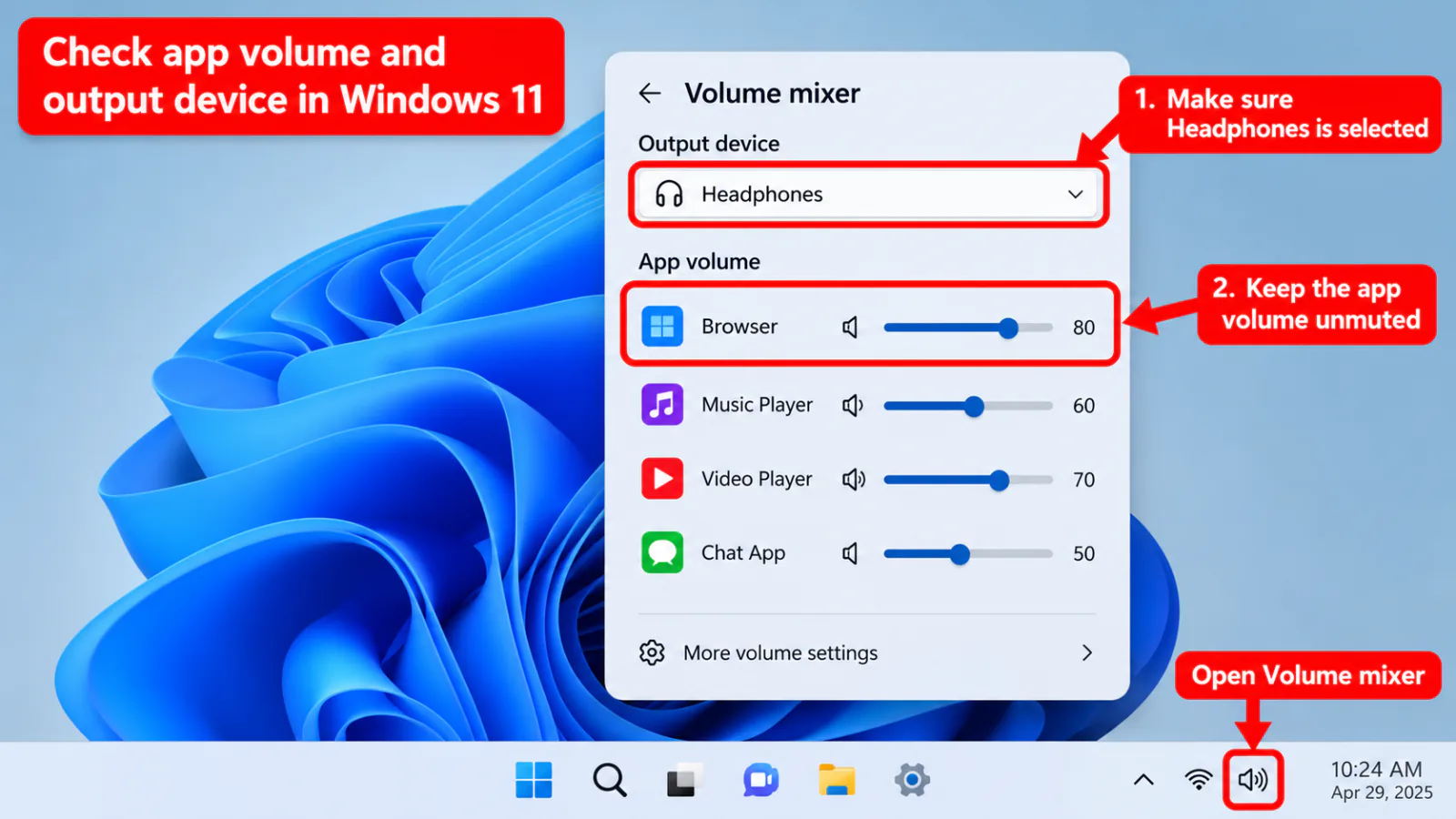
Step 1 — Open Volume Mixer
- Windows 11: Settings → System → Sound → Volume mixer.
- Or right-click the speaker icon → Open volume mixer (Windows 10 classic).
- Ensure Device volume and App volumes are up; clear mute icons.
- Set each app’s output device to your headphones (or System default after defaults are correct).
Step 2 — Communications tab ducking
- Open
mmsys.cpl→ Communications. - Choose Do nothing while testing (instead of “Mute all other sounds”).
- End stuck voice calls/meetings that may hold the communication device.
Step 3 — App-internal audio settings
- Browsers: check site mute and tab mute; set output device in browser settings if present.
- Discord/Teams/Zoom: Input/Output device = headphones stereo, not Hands-Free unless you need the mic path.
- If exclusive WASAPI is enabled in the app, switch to shared — exclusive mode.
FAQ
Headphones connected but muted — where?
Check the system Output volume, Volume Mixer app tiles, and the headset’s hardware mute. Communications “Mute all other sounds” can also silence media during calls.
System sounds work, YouTube does not
Classic mixer/app-output issue. Unmute the browser in Volume Mixer and verify the tab is not muted.
Volume Mixer missing an app
Play audio in the app first so Windows creates a session; then reopen the mixer.
Official / primary sources
Symptom map
- Headphones connected but no sound (start here)
- Bluetooth / wireless headphones — connected, no audio
- Wired / 3.5mm jack — plugged in, no audio
- Earbuds / buds connected but no sound
- Wrong default playback or communication device
- Exclusive mode / one app capturing the device
- Spatial sound / Windows Sonic issues
- Audio, Realtek, or Bluetooth driver problems
- Volume Mixer — app muted or communications ducking
- Windows 11 Settings paths for this symptom
- No sound after a Windows Update
- Windows audio & Bluetooth troubleshooters