Bluetooth / wireless headphones connected but no sound
Use this branch when Windows lists your wireless headset as Connected but media stays silent. Prefer the Stereo endpoint over Hands-Free, then fix volume, Spatial sound, pairing, and Bluetooth drivers.
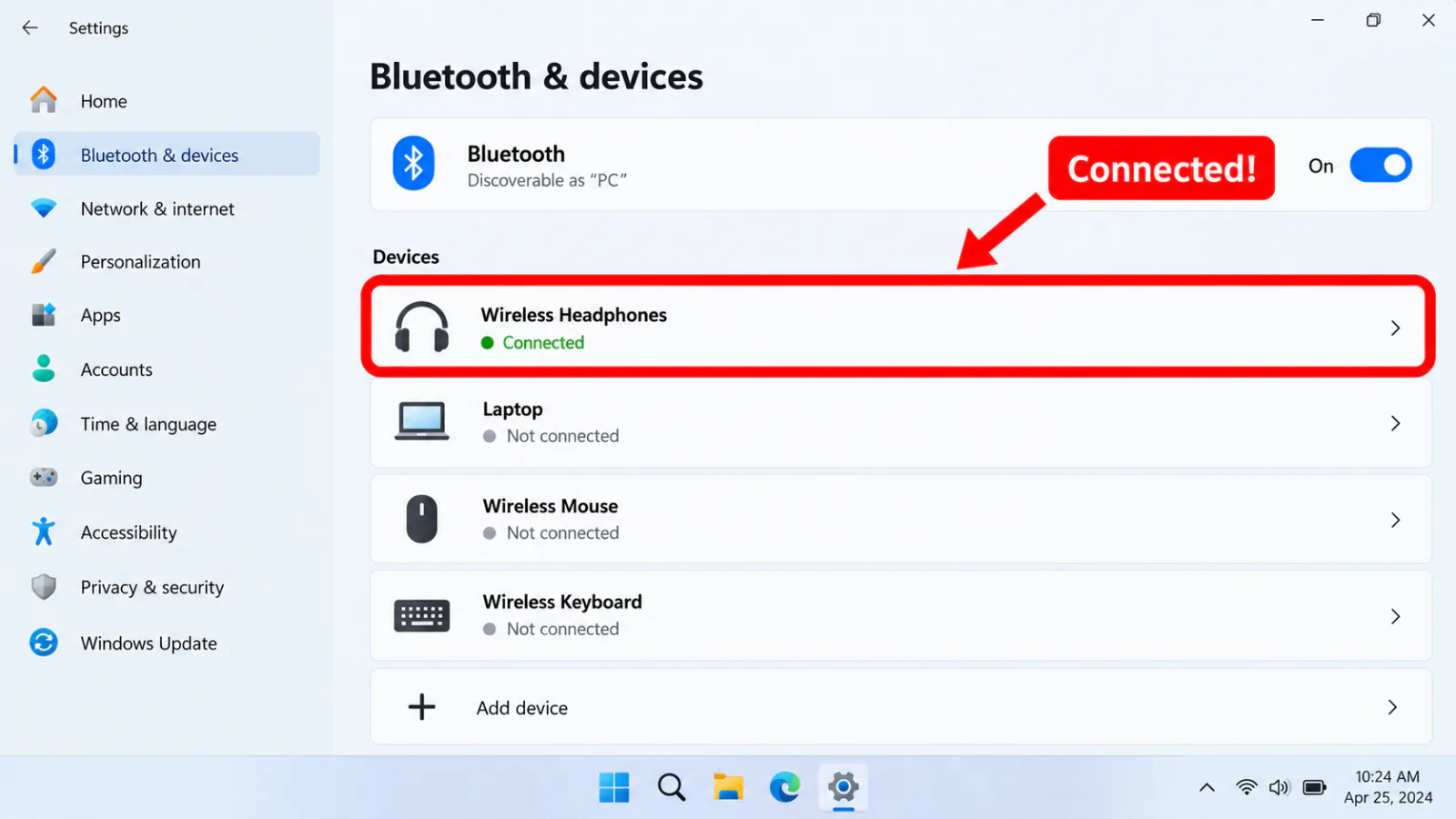
Step 1 — Confirm Bluetooth connection and battery
- Settings → Bluetooth & devices → confirm the headphones show Connected (not “Paired” only).
- Toggle Bluetooth off/on once; put the headset in pairing mode only if you will remove and re-pair.
- Charge the headset; many buds connect for calls yet mute media at low battery.
Step 2 — Choose Stereo (media), not Hands-Free only
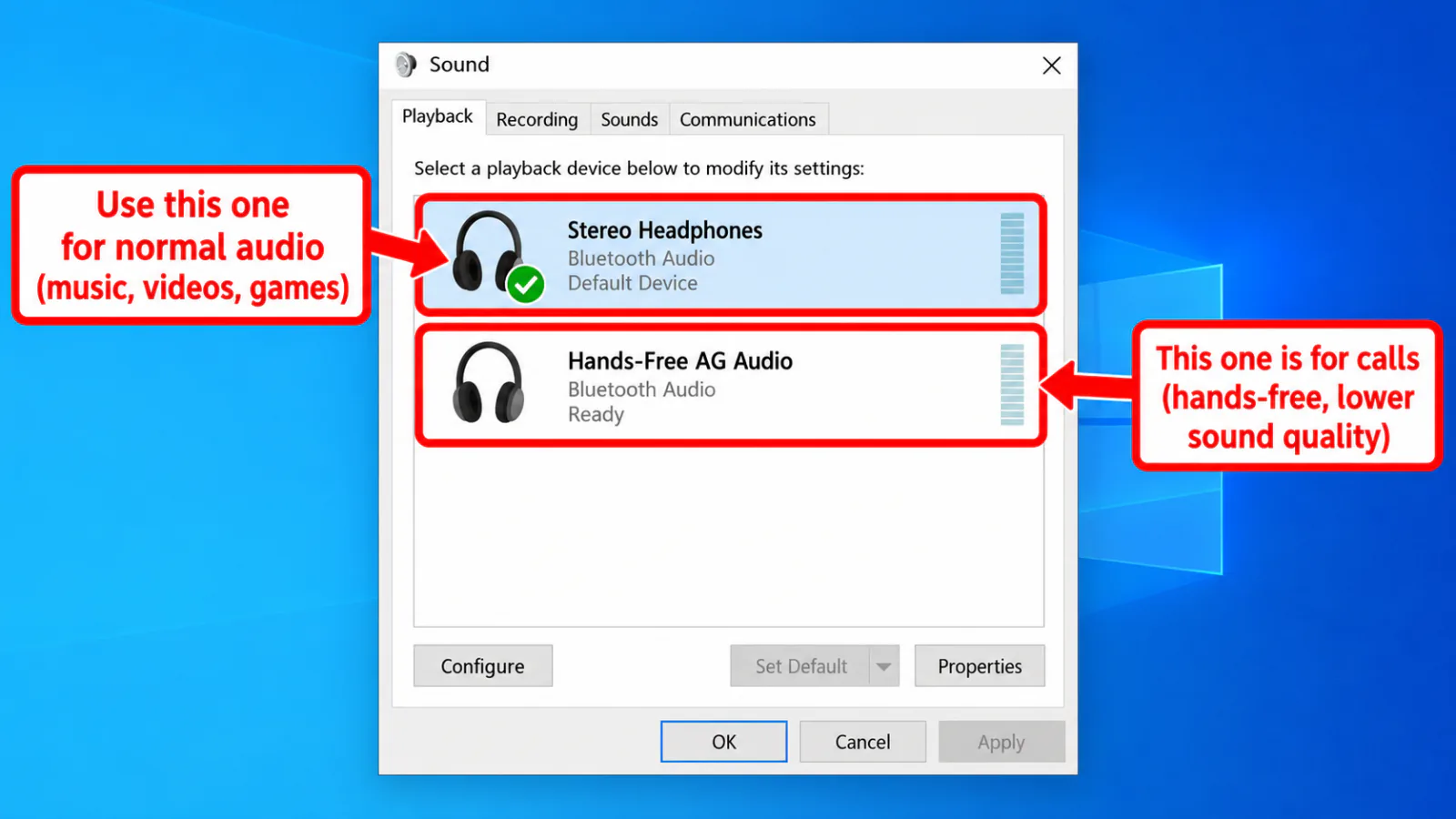
Bluetooth headsets often register two playback devices: a stereo headphones endpoint and a Hands-Free AG Audio endpoint (narrowband, for calls). Media apps stay silent if Hands-Free is the default.
- Settings → System → Sound → Output → choose the Headphones / stereo entry for your device.
- Or run
mmsys.cpl→ Playback → set the stereo headphones as Default Device and Default Communication Device (or leave communications on Hands-Free only if you prefer calls there — but keep media on Stereo). - Disable or disconnect the Hands-Free playback device temporarily to test.
Brand examples (Bose, Beats, Sony, and similar): same Windows endpoints — pick Stereo for music/video. No separate brand pages on this site.
Step 3 — Volume, format, Spatial sound, exclusive mode
- Raise Output volume; unmute the device tile in Sound settings.
- Device properties → Output settings: try a common format such as 24-bit, 48000 Hz (Studio Quality) if the meter is flat after a format change.
- Set Spatial sound to Off — spatial audio.
- In Sound Control Panel → Properties → Advanced, clear exclusive-mode checkboxes if one app owns the device — exclusive mode.
- Check Volume Mixer for a muted browser or player.
Step 4 — Remove, re-pair, then drivers / troubleshoot
- Settings → Bluetooth & devices → device → Remove device; reboot headset; pair again (Microsoft pairing help linked in Sources).
- Run Playing Audio + Bluetooth troubleshooters — troubleshooter.
- Update Bluetooth adapter and audio drivers — drivers.
- If silence began after an update — after update.
→ default output
→ earbuds
→ Windows 11
→ headphones connected but no sound
FAQ
Why are my Bluetooth headphones connected but there is no sound on Windows?
Usually the Hands-Free endpoint is selected, volume is muted, Spatial sound misbehaves, or the Bluetooth/audio driver failed. Microsoft’s article walks volume, format, and troubleshooters for this case.
Should I use Hands-Free or Stereo?
Use Stereo (Headphones) for music and video. Hands-Free is for microphone calls and often has no usable media path.
My Bose / Beats / Sony buds connect but stay silent
Same Windows checklist: Stereo default, Spatial Off, re-pair, OEM Bluetooth driver. Brand apps can help firmware, but Windows still must select the stereo endpoint.
Works on phone, not on PC
That points to Windows output/driver configuration, not a dead headset. Stay on this PC tree; mobile guides are out of scope.
Official / primary sources
Symptom map
- Headphones connected but no sound (start here)
- Bluetooth / wireless headphones — connected, no audio
- Wired / 3.5mm jack — plugged in, no audio
- Earbuds / buds connected but no sound
- Wrong default playback or communication device
- Exclusive mode / one app capturing the device
- Spatial sound / Windows Sonic issues
- Audio, Realtek, or Bluetooth driver problems
- Volume Mixer — app muted or communications ducking
- Windows 11 Settings paths for this symptom
- No sound after a Windows Update
- Windows audio & Bluetooth troubleshooters