Audio / Realtek / Bluetooth drivers
Use driver repair when devices are missing, marked with errors, or stay silent after defaults and Spatial checks. Prefer OEM packages; roll back if an update caused the break.
First cut
Update or reinstall drivers only after you have set the correct default output and ruled out Hands-Free / Spatial / exclusive issues. Prefer OEM or chipset vendor packages — never random “driver packs.”
Step 1 — Identify the audio and Bluetooth devices
- Win+X → Device Manager.
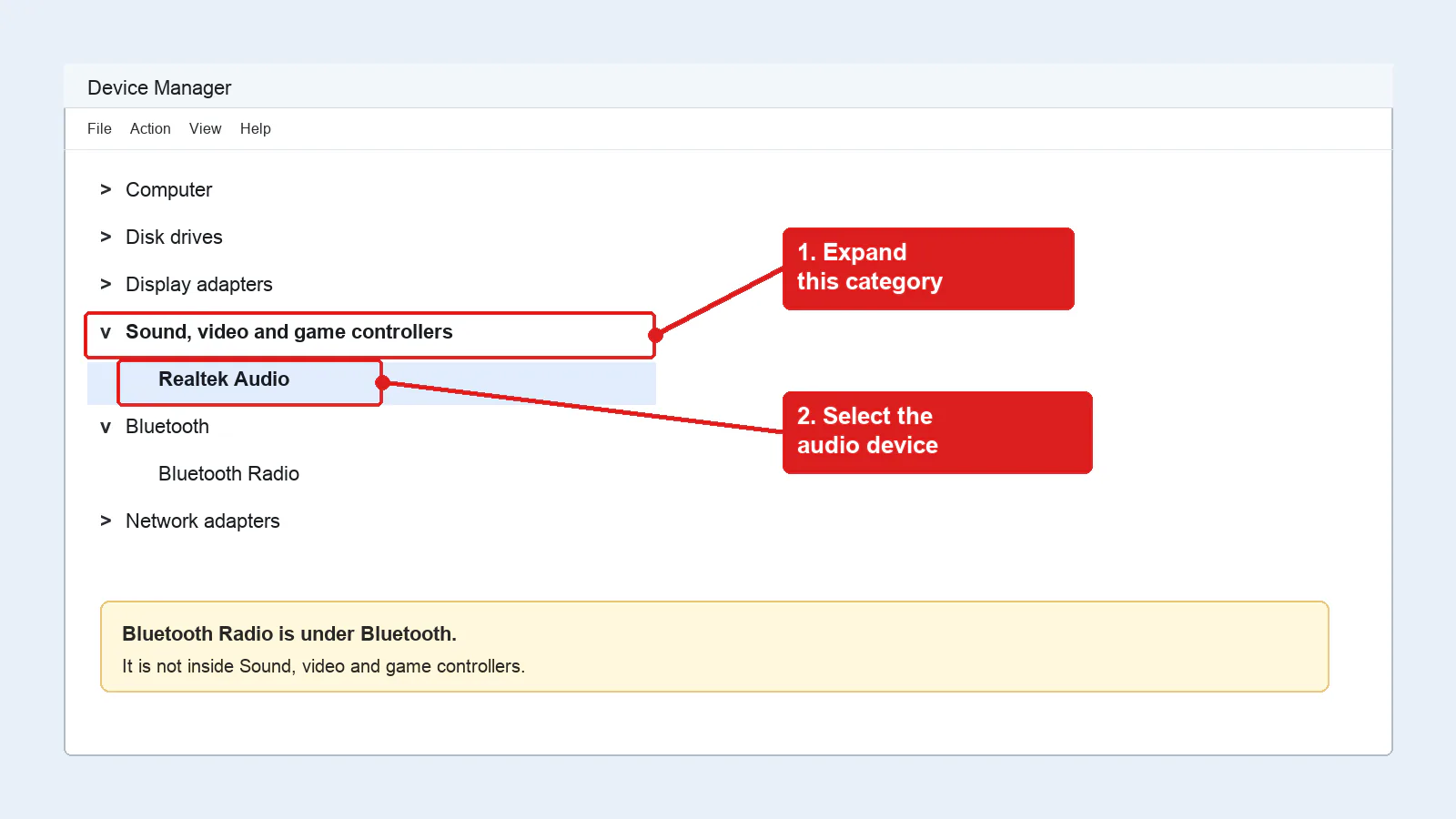
- Expand Sound, video and game controllers (Realtek, High Definition Audio Device, USB audio).
- Expand Bluetooth and Network adapters if your BT radio is listed there.
- Note yellow bangs or “Code 10 / Code 43” errors.
Step 2 — Update or roll back
- Right-click the audio device → Update driver → Search automatically.
- If silence began after a driver update: Properties → Driver → Roll Back Driver when available.
- Download the latest audio/Bluetooth package from your PC maker (Dell, HP, Lenovo, ASUS, etc.) or motherboard vendor — install that over generic Windows drivers when OEM provides one.
- For Bluetooth radios, also update the Bluetooth adapter driver, then reboot.
Step 3 — Clean reinstall High Definition Audio / Realtek
- Device Manager → uninstall the audio device; check “Attempt to remove the driver software” only when you have the OEM installer ready.
- Action → Scan for hardware changes, or reboot to reload the stack.
- Restart Windows Audio and Windows Audio Endpoint Builder in services.msc if devices vanish.
- Run Playing Audio troubleshooter after reinstall.
Broke after Windows Update
→ after update
→ after update
Bluetooth still silent
→ Bluetooth
→ Bluetooth
Wired Realtek jack
→ wired
→ wired
Home
→ decision tree
→ decision tree
FAQ
Headphones connected but no sound — is it always a driver?
No. Drivers matter when the meter is flat, devices are missing, or errors appear in Device Manager. Wrong defaults and Hands-Free selection are more common first.
Generic High Definition Audio Device vs Realtek
OEM Realtek (or vendor) packages often restore jack sensing and enhancements correctly. Generic HD Audio can work but may miss laptop mute quirks.
Safe to use Driver Booster style tools?
No. Use Windows Update, Device Manager, and OEM downloads only.
Official / primary sources
Symptom map
- Headphones connected but no sound (start here)
- Bluetooth / wireless headphones — connected, no audio
- Wired / 3.5mm jack — plugged in, no audio
- Earbuds / buds connected but no sound
- Wrong default playback or communication device
- Exclusive mode / one app capturing the device
- Spatial sound / Windows Sonic issues
- Audio, Realtek, or Bluetooth driver problems
- Volume Mixer — app muted or communications ducking
- Windows 11 Settings paths for this symptom
- No sound after a Windows Update
- Windows audio & Bluetooth troubleshooters