Windows audio & Bluetooth troubleshooters
Microsoft’s automated Playing Audio and Bluetooth troubleshooters restart services and detect simple faults. Run them, then return to the decision tree if the headset is still silent.
First cut
Microsoft’s Playing Audio and Bluetooth troubleshooters are useful after you set the correct output device, but they will not replace reading Hands-Free vs Stereo or exclusive mode. Run them as structured checks — then continue the decision tree if silence remains.
Step 1 — Playing Audio troubleshooter
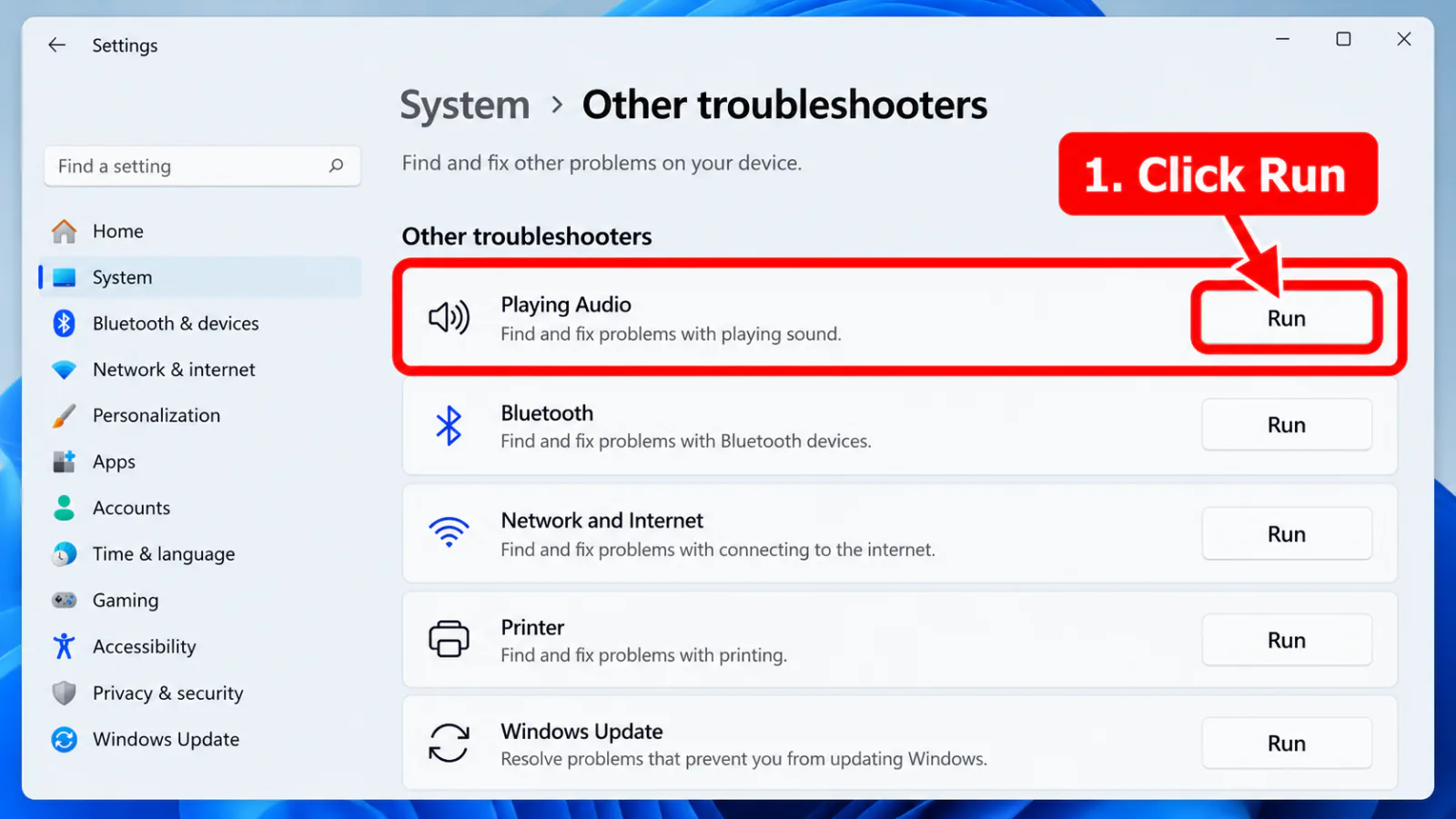
- Windows 11: Settings → System → Troubleshoot → Other troubleshooters → Playing Audio → Run.
- Or Settings → System → Sound → find the troubleshoot entry for the output device.
- Apply recommended fixes; reboot if prompted; retest headphones.
Step 2 — Bluetooth troubleshooter
- Other troubleshooters → Bluetooth → Run (when the radio misbehaves or devices will not stay connected).
- Follow Microsoft’s Bluetooth no-sound article solutions (volume, format, automated tools).
- Re-pair the headset after the troubleshooter finishes if it still shows Connected with silence — Bluetooth.
Step 3 — If troubleshooters report no problem
Continue manually:
Default / communications device
→ default output
→ default output
Exclusive mode
→ exclusive mode
→ exclusive mode
Spatial sound
→ spatial audio
→ spatial audio
Mixer mute
→ Volume Mixer
→ Volume Mixer
Drivers
→ drivers
→ drivers
After update
→ after update
→ after update
FAQ
How do I fix Bluetooth connected but no sound with Microsoft tools?
Run Bluetooth + Playing Audio troubleshooters, then manually set Stereo output, volume, and format as in Microsoft’s Bluetooth no-sound article.
Troubleshooter says it fixed something but still silent
Reboot, recheck Default device and Spatial Off, then drivers. Automated fixes often restart services but leave the wrong endpoint selected.
No Bluetooth troubleshooter listed
Hardware may lack a Bluetooth radio, or the radio is disabled in BIOS/OEM utilities. Use Playing Audio and Device Manager instead.
Official / primary sources
Symptom map
- Headphones connected but no sound (start here)
- Bluetooth / wireless headphones — connected, no audio
- Wired / 3.5mm jack — plugged in, no audio
- Earbuds / buds connected but no sound
- Wrong default playback or communication device
- Exclusive mode / one app capturing the device
- Spatial sound / Windows Sonic issues
- Audio, Realtek, or Bluetooth driver problems
- Volume Mixer — app muted or communications ducking
- Windows 11 Settings paths for this symptom
- No sound after a Windows Update
- Windows audio & Bluetooth troubleshooters