After Windows Update no sound
When playback died right after a cumulative or optional driver update, roll back the audio/Bluetooth driver or uninstall the update, then restore Default output.
First cut
Use this page when headphones worked, then went silent right after a Windows quality/feature update or a driver delivered by Windows Update. Roll back the update or the audio/Bluetooth driver before rebuilding the PC.
Step 1 — Confirm timing
- Sound broke the same day as a Windows Update reboot.
- Update history shows a quality update, feature update, or optional driver install just before the failure.
- Bluetooth still shows Connected; only playback died (or devices vanished).
Step 2 — Roll back audio / Bluetooth drivers
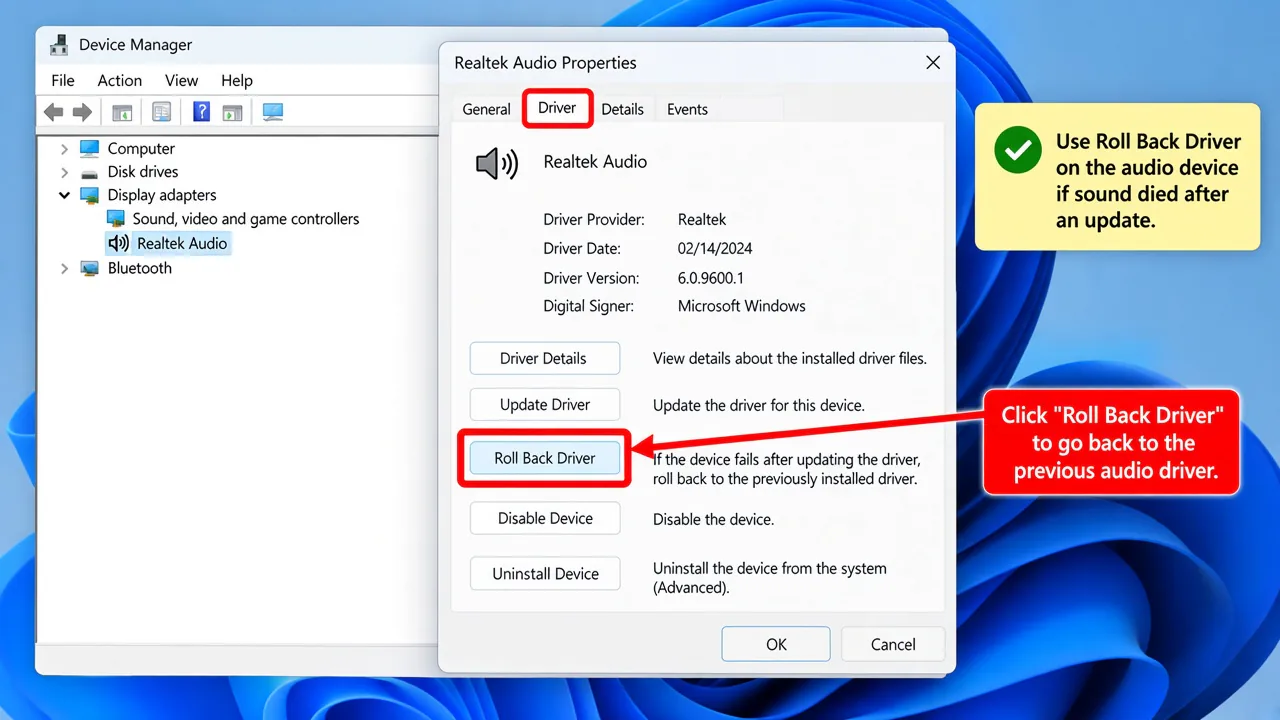
- Device Manager → audio or Bluetooth device → Properties → Driver → Roll Back Driver if enabled.
- If Roll Back is unavailable, install the previous OEM audio/Bluetooth package — drivers.
- Reboot and retest headphones.
Step 3 — Uninstall the Windows Update
- Settings → Windows Update → Update history → Uninstall updates.
- Remove the newest quality update first; reboot and test sound.
- Pause updates briefly while you verify a later cumulative is safe.
- Re-run Playing Audio / Bluetooth troubleshooters — troubleshooter.
Defaults reset after update
→ default output
→ default output
Bluetooth Hands-Free only
→ Bluetooth
→ Bluetooth
Win11 Settings
→ Windows 11
→ Windows 11
Home
→ decision tree
→ decision tree
FAQ
Headphones no sound after Windows Update — first step?
Roll back the audio/Bluetooth driver if possible, restore Default output, then uninstall the latest quality update if needed.
Should I uninstall security updates forever?
No. Use uninstall to regain sound, pause briefly, then take a newer cumulative when available.
Optional driver updates caused this
In Update history, uninstall the optional audio/Bluetooth driver package or roll it back in Device Manager.
Official / primary sources
Symptom map
- Headphones connected but no sound (start here)
- Bluetooth / wireless headphones — connected, no audio
- Wired / 3.5mm jack — plugged in, no audio
- Earbuds / buds connected but no sound
- Wrong default playback or communication device
- Exclusive mode / one app capturing the device
- Spatial sound / Windows Sonic issues
- Audio, Realtek, or Bluetooth driver problems
- Volume Mixer — app muted or communications ducking
- Windows 11 Settings paths for this symptom
- No sound after a Windows Update
- Windows audio & Bluetooth troubleshooters