Wired / 3.5mm jack headphones connected but no sound
For analog jack and simple USB headsets that appear under Realtek or High Definition Audio. Reseat the plug, set Headphones as Default, disable enhancements and Spatial sound, then update audio drivers.
First cut
Use this page for 3.5mm / analog jack or simple USB headsets that appear as a Realtek / High Definition Audio device. If the cable is fine but Windows lists a Bluetooth device, go to Bluetooth instead.
Step 1 — Physical and jack checks
- Fully reseat the plug; try the other end if the cable is detachable.
- On laptops with a combo headset jack, use a CTIA headset or OEM adapter — TRRS mismatch can show a device yet mute speakers.
- Unplug USB docks/dongles that might steal the default endpoint, then retest.
- Confirm front-panel HD Audio is connected in the desktop case (if the rear jack works but the front does not).
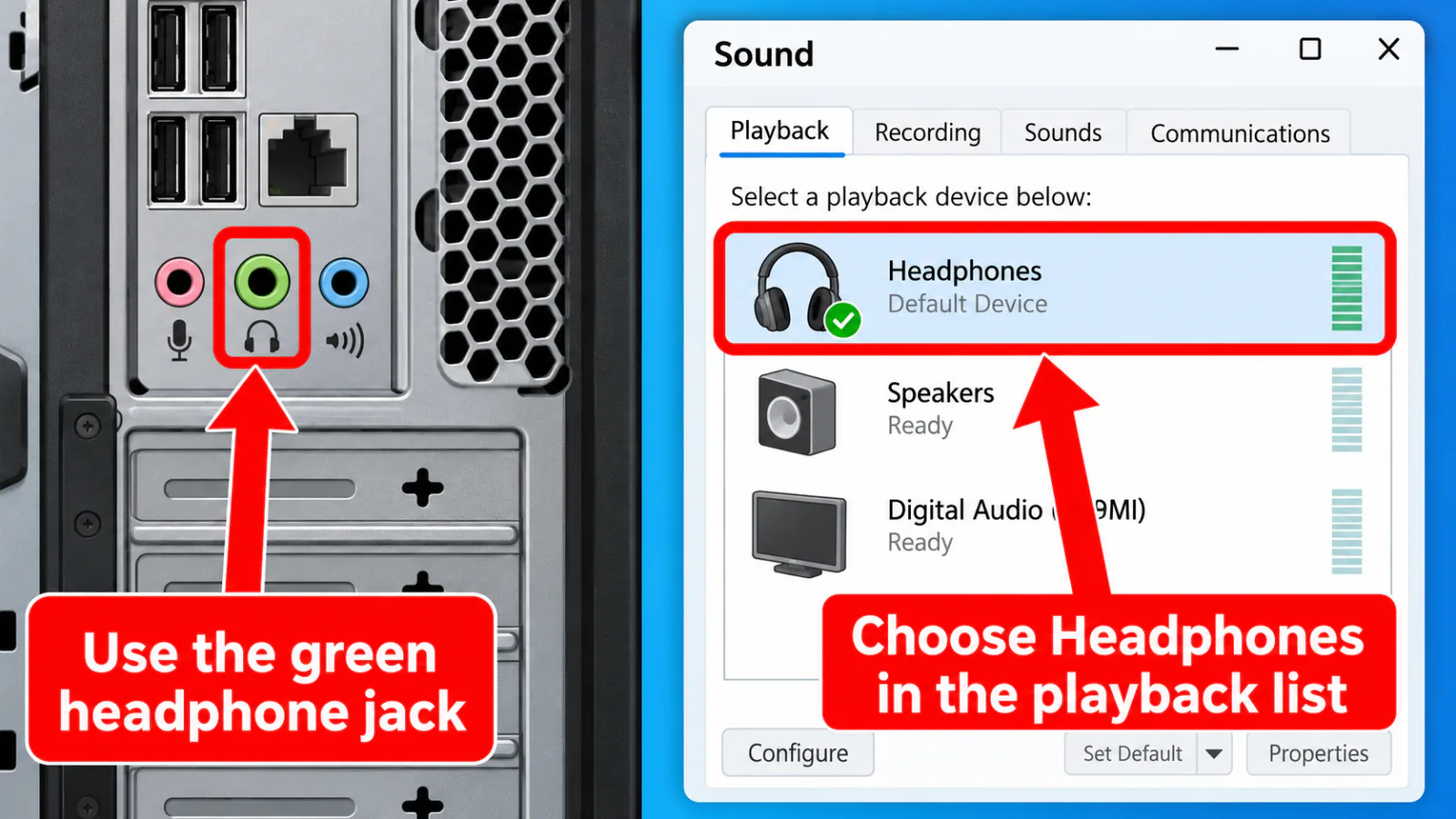
Step 2 — Set Headphones as the default playback device
- Settings → System → Sound → Output → choose Headphones or the Realtek headphones device (not Speakers / Digital Output).
- Open
mmsys.cpl→ Playback → right-click Headphones → Set as Default Device and Default Communication Device. - Disable unused outputs temporarily (HDMI, DisplayPort audio) to prevent auto-switch.
If speakers play and headphones do not (or reverse), stay on default output after this step.
Step 3 — Enhancements, Spatial sound, exclusive mode
- Sound Control Panel → Headphones → Properties → Enhancements (or Advanced) → Disable all enhancements.
- Spatial sound → Off (spatial audio).
- Advanced → clear “Allow applications to take exclusive control of this device” for testing (exclusive mode).
- Check Volume Mixer for muted apps (Volume Mixer).
Step 4 — Drivers and Realtek
- Device Manager → Sound, video and game controllers → update or reinstall High Definition Audio / Realtek — drivers.
- Run the Playing Audio troubleshooter — troubleshooter.
- If silence started after Windows Update — after update.
Bluetooth, not wired
→ Bluetooth
→ Bluetooth
Home tree
→ start here
→ start here
FAQ
Wired headphones are connected but no sound on my PC
Reseat the jack, set Headphones as Default in Sound settings, disable enhancements and Spatial sound, then update Realtek/HD Audio drivers.
Front jack silent, rear jack works
Usually a case HD Audio cable or front-panel detection issue. Test the rear green jack; update audio drivers; check OEM front-panel settings in the Realtek app if present.
Windows shows headphones but speakers still play
Default device was not switched. Use default output and disable auto-switching HDMI devices.
Official / primary sources
Symptom map
- Headphones connected but no sound (start here)
- Bluetooth / wireless headphones — connected, no audio
- Wired / 3.5mm jack — plugged in, no audio
- Earbuds / buds connected but no sound
- Wrong default playback or communication device
- Exclusive mode / one app capturing the device
- Spatial sound / Windows Sonic issues
- Audio, Realtek, or Bluetooth driver problems
- Volume Mixer — app muted or communications ducking
- Windows 11 Settings paths for this symptom
- No sound after a Windows Update
- Windows audio & Bluetooth troubleshooters