Wrong default playback device
Speakers or HDMI still play while headphones show as connected? Set the headphones as Default Device and Default Communication Device, then lock per-app outputs in Volume Mixer.
First cut
If speakers work while headphones stay silent — or Windows shows the headphones connected but audio keeps exiting the monitor/HDMI device — fix the default playback device before reinstalling drivers.
Step 1 — Pick the output in Settings
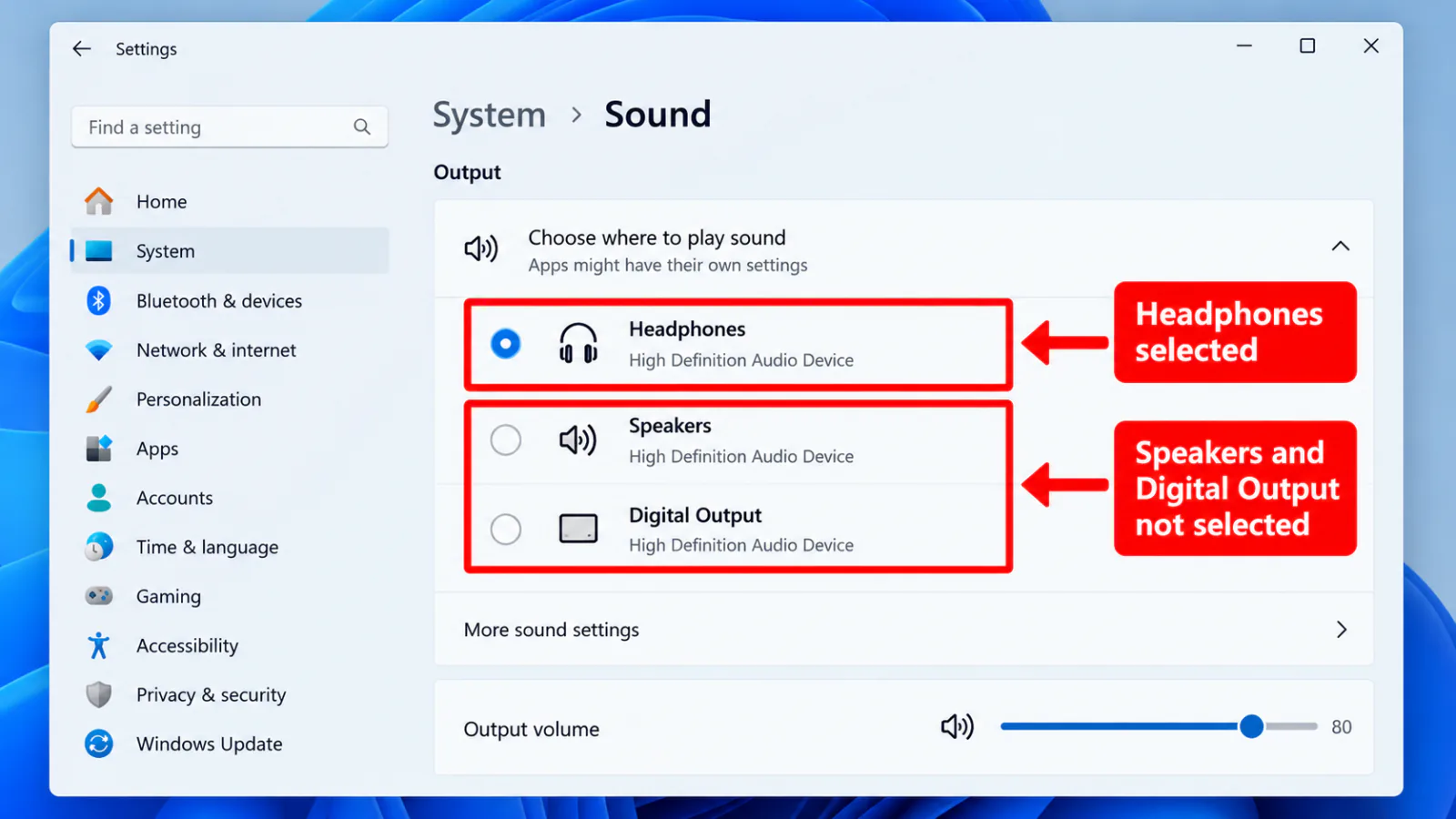
- Windows 11: Settings → System → Sound → Output → choose your headphones.
- Click the headphones → set Volume above 0; ensure the device is not Disabled.
- Play the test tone (Output settings) and watch the meter.
Step 2 — Classic Sound Control Panel defaults
- Press Win+R →
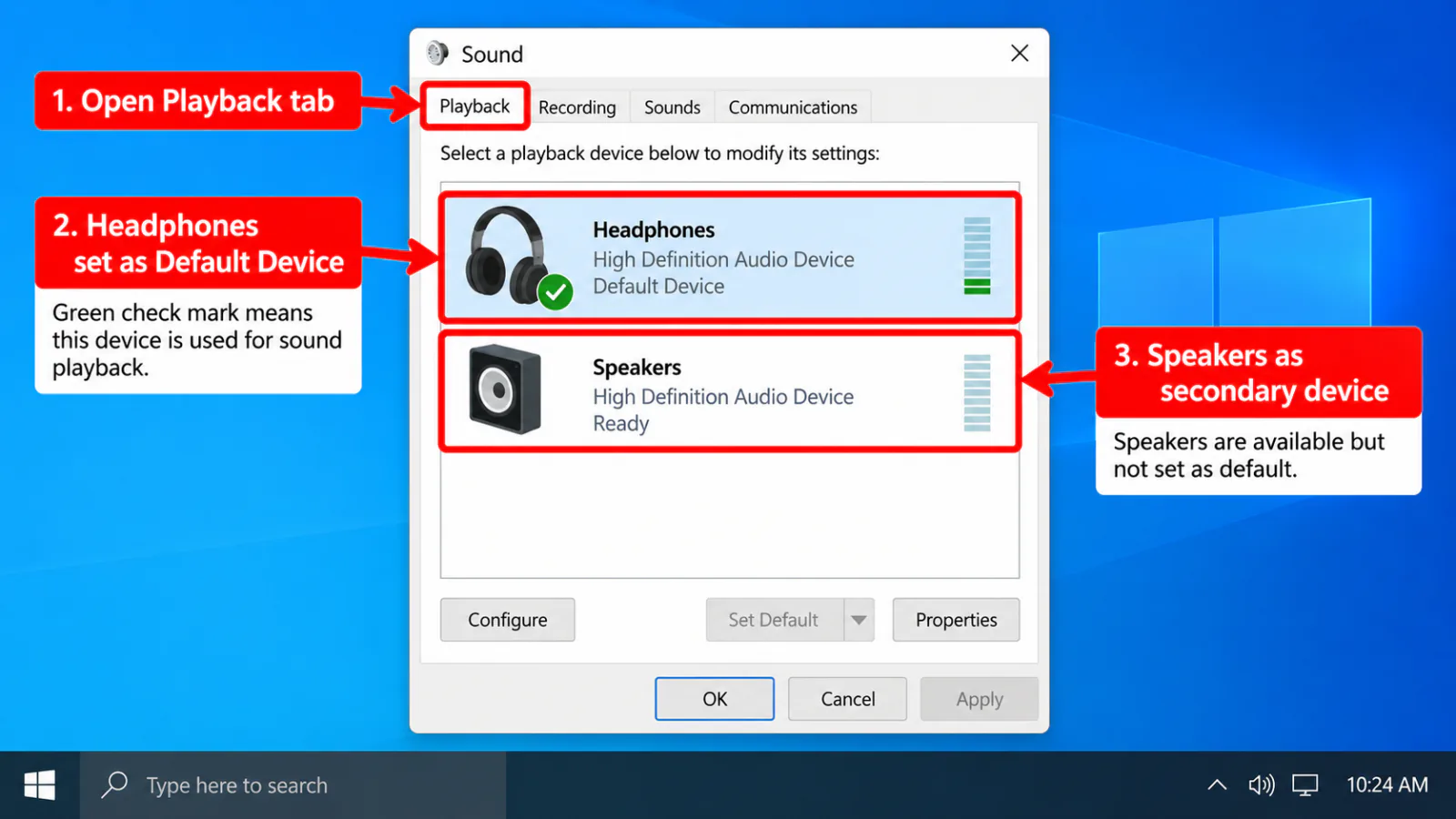
mmsys.cpl→ Playback tab. - Right-click the headphones → Set as Default Device.
- Right-click again → Set as Default Communication Device (unless you intentionally keep calls on another endpoint).
- Right-click empty space → Show Disabled Devices / Show Disconnected Devices; disable unused HDMI/DisplayPort audio if Windows keeps switching.
Step 3 — Per-app output and communications
- Settings → System → Sound → Volume mixer → set each noisy app to the headphones device.
- Sound Control Panel → Communications tab → try “Do nothing” so calls do not duck or mute other sound oddly.
- Browser or game device pickers can override the system default — reset them to System Default or Headphones.
FAQ
Headphones connected but no sound — Windows still uses speakers
The default output was not the headphones. Set Default Device in Settings and mmsys.cpl, and disable auto-switching digital outputs.
Why do I need Default Communication Device?
Some chat apps route to the communication default. If that points at Hands-Free or speakers, media or call audio can seem “missing.”
HDMI monitor keeps taking audio
Disable the monitor’s audio endpoint in mmsys.cpl when you want headphones, or unplug HDMI audio if unused.
Official / primary sources
Symptom map
- Headphones connected but no sound (start here)
- Bluetooth / wireless headphones — connected, no audio
- Wired / 3.5mm jack — plugged in, no audio
- Earbuds / buds connected but no sound
- Wrong default playback or communication device
- Exclusive mode / one app capturing the device
- Spatial sound / Windows Sonic issues
- Audio, Realtek, or Bluetooth driver problems
- Volume Mixer — app muted or communications ducking
- Windows 11 Settings paths for this symptom
- No sound after a Windows Update
- Windows audio & Bluetooth troubleshooters