Exclusive mode / app capturing device
When a game, DAW, or chat app takes exclusive control, other programs go silent on the same headphones. Clear exclusive-mode checkboxes and switch apps to shared output.
First cut
If one app (game, DAW, voice chat) works and everything else is silent — or the reverse — another program may have taken exclusive control of the headphones. Disable exclusive mode on that device before reinstalling Windows.
Step 1 — Recognize exclusive-mode symptoms
- Sound works in one app only; system sounds and browser are mute on the same headphones.
- Closing a game or DAW suddenly restores sound elsewhere.
- Device meter moves only while that app is focused.
Step 2 — Disable exclusive mode on the headphones
- Win+R →
mmsys.cpl→ Playback → select Headphones → Properties. - Open the Advanced tab.
- Clear Allow applications to take exclusive control of this device.
- Clear Give exclusive mode applications priority.
- Apply → OK; restart the conflicting app (or reboot once).
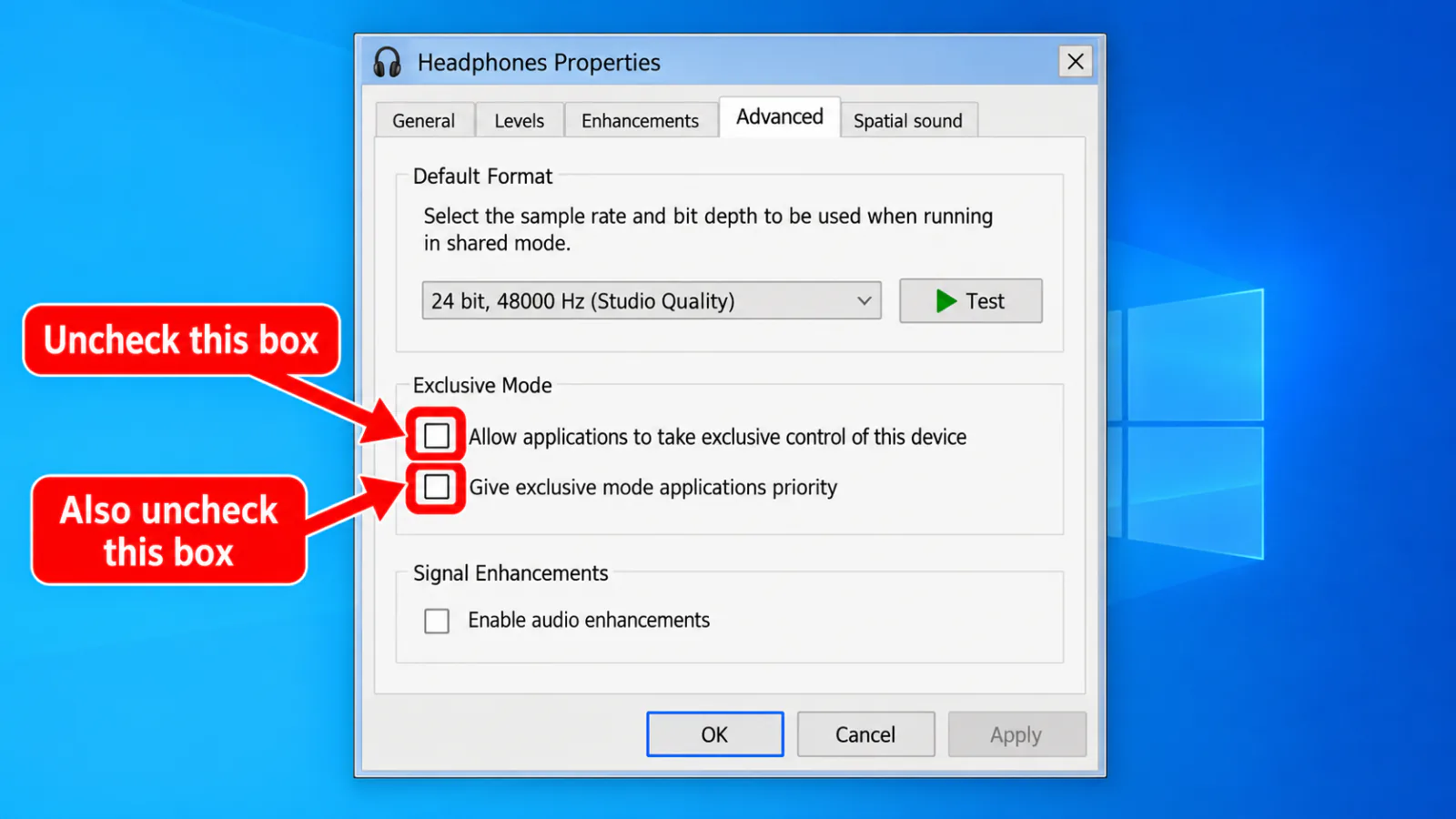
Step 3 — App-side WASAPI / exclusive settings
- In DAWs and some players, switch output from exclusive WASAPI to shared / Windows Default.
- Close overlays that open a second audio session (some recorders, overlays, virtual cables).
- Recheck Volume Mixer and default output.
Spatial sound oddities
→ spatial audio
→ spatial audio
Driver still broken
→ drivers
→ drivers
Bluetooth endpoint
→ Bluetooth
→ Bluetooth
Home
→ decision tree
→ decision tree
FAQ
Headphones connected but sound not working in every app
Exclusive mode or a stuck WASAPI session is a top cause. Disable exclusive control, close the grabbing app, then retest system sounds.
Is exclusive mode ever useful?
Yes for low-latency pro audio. Re-enable it only for that app after shared-mode testing succeeds.
I cannot find the Advanced tab
Use the classic Sound control panel (mmsys.cpl). Settings → Sound alone does not expose exclusive checkboxes on all builds.
Official / primary sources
Symptom map
- Headphones connected but no sound (start here)
- Bluetooth / wireless headphones — connected, no audio
- Wired / 3.5mm jack — plugged in, no audio
- Earbuds / buds connected but no sound
- Wrong default playback or communication device
- Exclusive mode / one app capturing the device
- Spatial sound / Windows Sonic issues
- Audio, Realtek, or Bluetooth driver problems
- Volume Mixer — app muted or communications ducking
- Windows 11 Settings paths for this symptom
- No sound after a Windows Update
- Windows audio & Bluetooth troubleshooters